
Download Screen2Avi – Free Screen Recording Software for Windows
Screen2Avi is a lightweight, free screen recording tool designed exclusively for Windows users. Ideal for content creators, educators, and professionals who need to capture screen activity and convert it into AVI video files. With its simple interface and minimal system requirements, Screen2Avi delivers reliable performance for recording tutorials, software demos, online meetings, and more.
Although the last update was in 2012, it remains a trusted choice for users who value stability and simplicity over advanced features. The software is part of the Design & Photography category, specifically under Screen Capture tools, and is developed by Trust.fm. Despite its age, Screen2Avi continues to be popular in Finland and among Windows users seeking a no-frills recording solution.
Key Features of Screen2Avi
Screen2Avi stands out in the crowded field of screen recording tools thanks to its focus on simplicity and efficiency. The software is designed to capture everything happening on your computer screen in real time and save it directly as an AVI video file. One of its most notable features is its minimal system footprint—unlike many modern screen recorders that consume significant CPU and RAM, Screen2Avi operates smoothly even on older or low-end machines. This makes it a great option for users with legacy Windows systems like Windows XP or Windows 7.
Another standout feature is its direct AVI output format. While many modern tools default to MP4 or MOV, AVI is still widely supported across older video editing software and platforms. This is particularly useful for users who need compatibility with legacy systems or specific editing workflows. Screen2Avi allows you to record the entire screen or select a specific window or region, giving you flexibility in how you capture content. The recording process is straightforward: simply launch the app, choose your recording area, and hit “Start.” There’s no complex setup or configuration required.
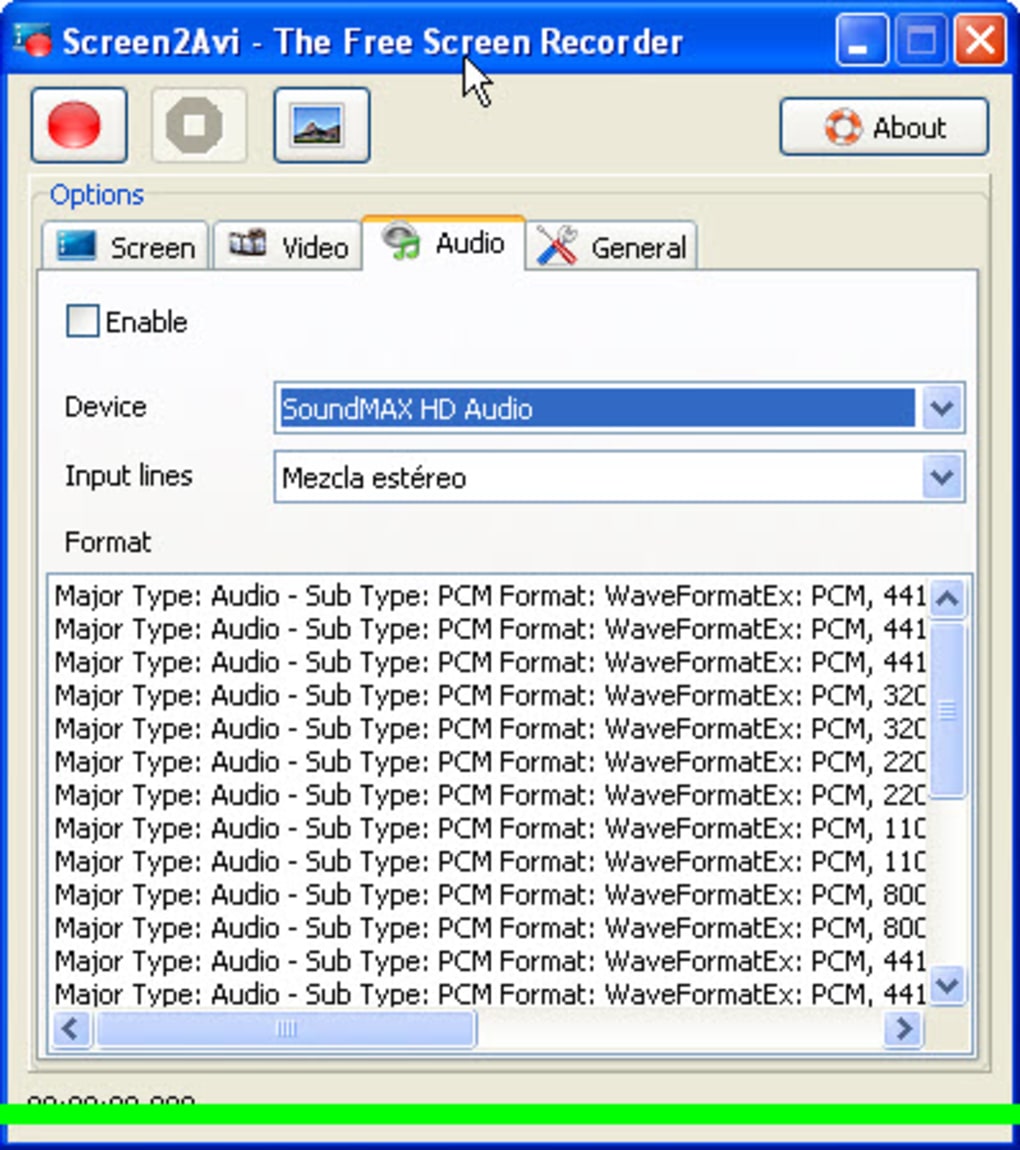
Despite lacking advanced editing features, Screen2Avi offers basic controls such as recording duration limits, frame rate selection, and the ability to adjust the quality of the output video. These settings are accessible through a clean, no-nonsense interface that doesn’t overwhelm beginners. Additionally, the software supports audio capture from your microphone or system audio, which is essential for creating tutorial videos with voiceovers. All recordings are saved to a user-defined folder, making file management easy. For users who prefer a lightweight, no-bloat solution, Screen2Avi delivers exactly what it promises—simple, fast, and reliable screen recording with minimal fuss.
Installation & Usage Guide
Installing Screen2Avi is a quick and hassle-free process, especially for users who value simplicity. Since it’s a portable application, you don’t need to go through a traditional installer. Instead, you can simply download the .zip file from the official source, extract it to a folder of your choice (like your Desktop or Documents), and run the executable file directly. This means there are no registry entries or leftover files after uninstalling—perfect for users who prefer clean, temporary software setups.
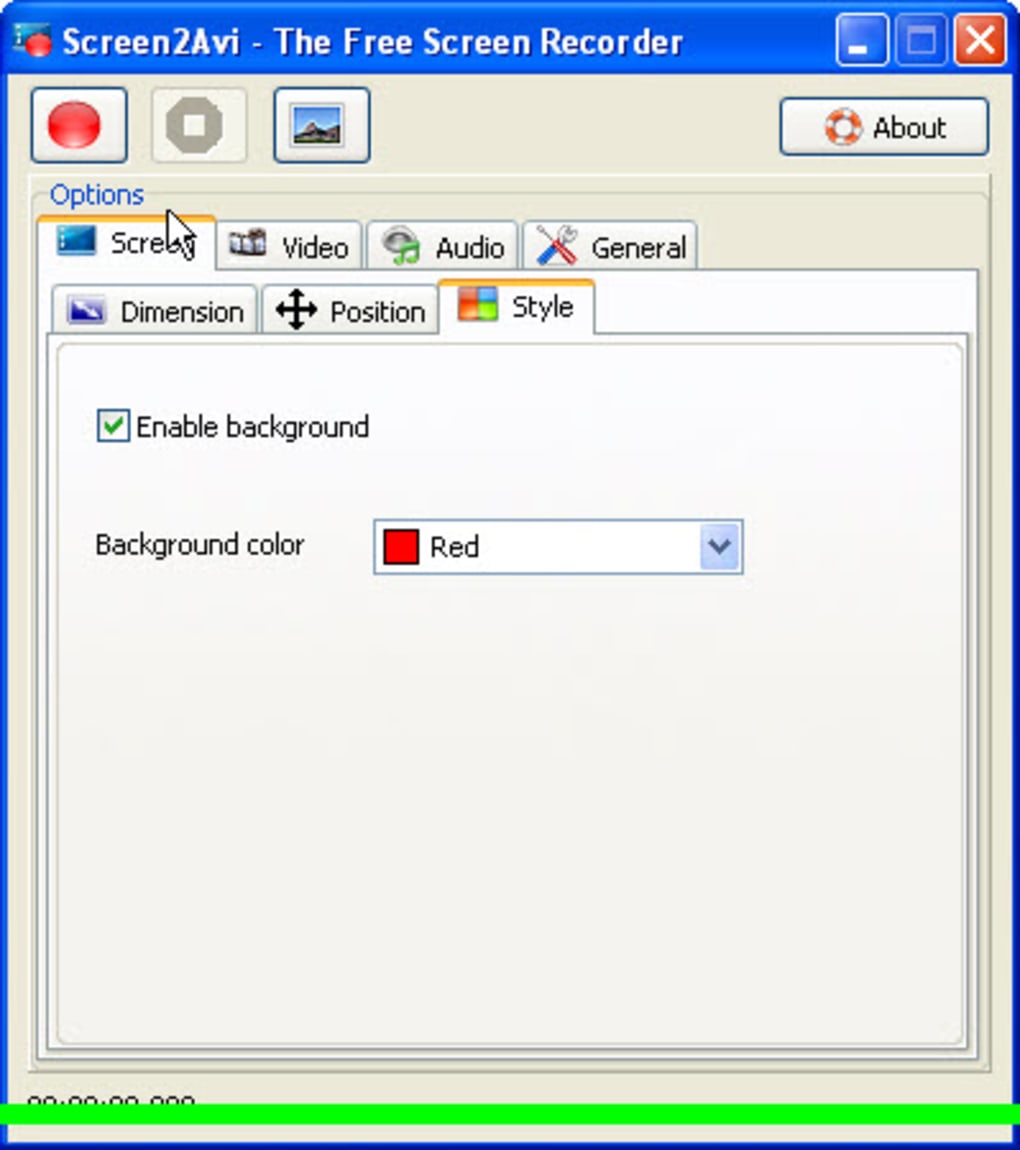
Once launched, Screen2Avi presents a minimal interface with only essential controls. The main window displays options to select the recording area: “Full Screen,” “Active Window,” or “Custom Region.” You can drag the selection box to define a specific area of your screen. Below that, you’ll find settings for frame rate (ranging from 10 to 30 fps), video quality, and audio input source. Choosing the right frame rate depends on your content—30 fps is ideal for smooth motion, while 15–20 fps works well for static presentations or tutorials.
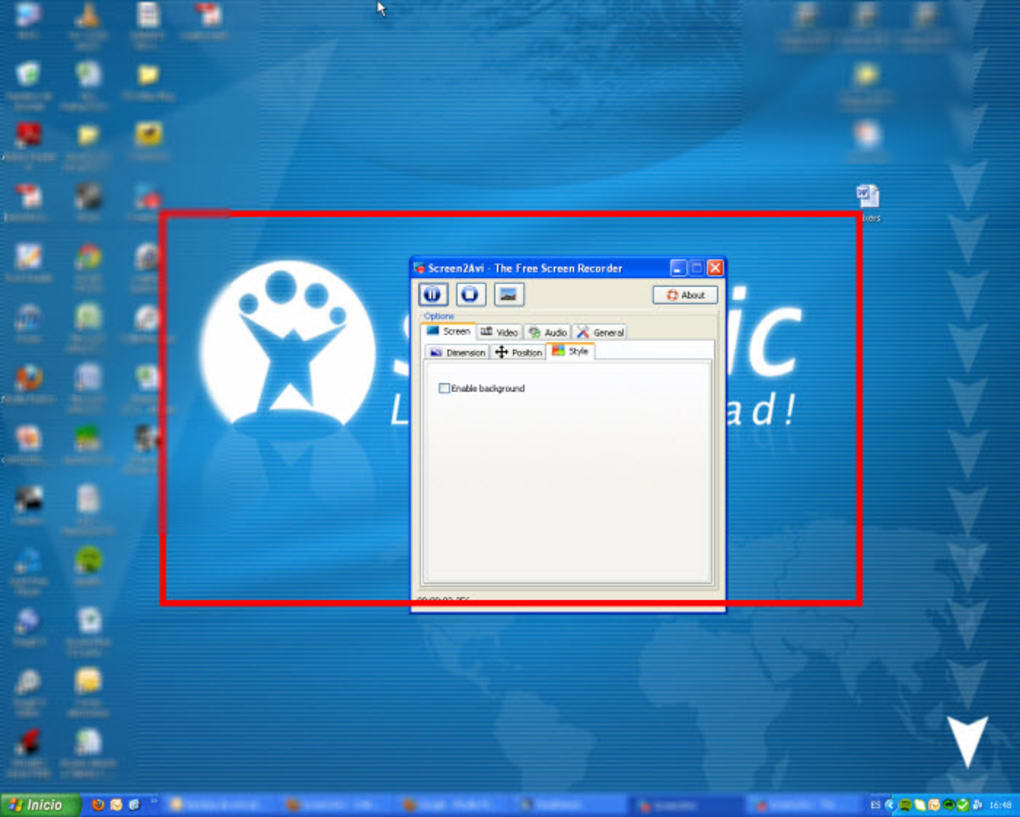
To start recording, click the “Start” button. A small overlay will appear on your screen indicating that recording is in progress. You can pause or stop the recording at any time using the on-screen controls or the keyboard shortcut (usually Ctrl+Shift+S).
After stopping, the software automatically saves the file in AVI format to your chosen directory. The entire process is intuitive and requires no prior experience. For advanced users, you can tweak settings before each session to optimize file size and quality.
Overall, Screen2Avi’s ease of use makes it a top choice for anyone who needs to capture screen activity quickly and securely without learning a complex interface.
Compatibility & System Requirements
Screen2Avi is designed exclusively for Windows operating systems, making it an ideal choice for users still running older versions of the OS. It officially supports Windows XP, Windows Vista, and Windows 7, which is a significant advantage for individuals or organizations using legacy systems. While newer versions of Windows (like Windows 10 and 11) may run the software via compatibility mode, it’s not officially tested or guaranteed to work on these platforms. Therefore, if you’re using a modern Windows machine, you may need to enable compatibility settings or consider alternative tools like ShareX or oCam.
One of the software’s greatest strengths is its low system requirement. It doesn’t demand high-end hardware, which means even machines with limited RAM or older processors can run it smoothly. This makes Screen2Avi a perfect fit for older laptops, school computers, or public terminals where performance is a concern. The software itself is only a few megabytes in size, so downloading and storing it won’t take up much space on your hard drive.
Despite its age, Screen2Avi remains secure for use in private environments. Since it’s open-source and distributed through trusted channels, there are no known malware risks. However, because the last update was in 2012, it doesn’t support modern codecs or security protocols.
For users who prioritize future-proofing and security, this could be a concern. Still, for basic screen recording tasks on older systems, Screen2Avi offers a stable and reliable experience. It’s also worth noting that the software is only available in English, which may be a limitation for non-English speakers.
Pros & Cons
- Pros:
- Free and open-source software with no hidden costs
- Extremely lightweight and runs on older hardware
- Simple, intuitive interface suitable for beginners
- Direct AVI output format for compatibility with legacy software
- Supports audio capture from microphone and system sound
- Portable version available—no installation required
- Cons:
- No updates since 2012—lacks modern features and security patches
- Not officially supported on Windows 10/11
- Only available in English
- Limited editing tools—no built-in video editing or trimming
- AVI files can be large and less efficient than MP4
Frequently Asked Questions (FAQ)
Is Screen2Avi safe to download and use?
Yes, Screen2Avi is considered safe to download and use, especially when obtained from official or trusted sources. It’s open-source software developed by Trust.fm and has been widely used since 2012 without major security incidents. However, since the last update was in 2012, it may lack modern security protections. For personal or offline use, it remains a low-risk option.
Can I use Screen2Avi on Windows 10 or Windows 11?
While Screen2Avi is not officially supported on Windows 10 or 11, many users have successfully run it using compatibility mode. Right-click the executable, go to Properties > Compatibility, and select “Windows XP (Service Pack 3)” or “Windows 7.” This often resolves compatibility issues. However, performance may vary, and some features may not work as expected.
What video format does Screen2Avi use?
Screen2Avi saves recordings in AVI (Audio Video Interleave) format by default. This format is widely supported across older video editing tools and systems, making it ideal for users who need compatibility with legacy software. However, AVI files tend to be larger than MP4 files, so consider this when managing storage space.
Does Screen2Avi support recording audio?
Yes, Screen2Avi allows you to record audio from both your microphone and system audio (if supported by your system). This feature is essential for creating voice-over tutorials, presentations, or software demos. Make sure your audio devices are properly configured before starting a recording.
Can I edit the recorded videos in Screen2Avi?
No, Screen2Avi does not include any video editing tools. It’s a pure screen recording application. After recording, you’ll need to use a separate video editor—such as Windows Movie Maker, DaVinci Resolve, or Shotcut—to trim, crop, or add effects to your AVI files.
Conclusion & Call to Action
If you’re looking for a free, lightweight screen recording tool that works seamlessly on older Windows systems, Screen2Avi is a solid choice. Despite its age and lack of recent updates, it continues to deliver reliable performance for basic screen capture tasks. Its minimal design, low system requirements, and direct AVI output make it ideal for educators, trainers, and hobbyists who need a no-frills solution.
While it doesn’t offer modern features like cloud sharing, advanced editing, or support for newer operating systems, Screen2Avi excels in simplicity and stability. For users with legacy hardware or those who prefer a minimal tool without bloat, this software remains a valuable resource.
Download Screen2Avi today and start recording your screen in AVI format—fast, secure, and completely free. Whether you’re creating tutorials, documenting software issues, or capturing online content, this lightweight tool gets the job done without the complexity.







